Showing posts with label android marshmallow. Show all posts

Monday, 7 March 2016

7 Best Apps For March 2016!!

Hello! Everyone, In this post I will be sharing a list of TOP 10 BEST APPS .... The apps listed below are really very useful and you all gonna like it ..too!!!

Like always I wanna say... If you guys have info about some really cool app please mention it below in the COMMENT section.... I would love to give it a try... Thankyou!


Now coming to the list of top 7 Apps... 


1. SQUAREHOME 2 (launcher) - 


SquareHome 2 is the best launcher with metro UI of Windows 10.
It's easy to use, simple, beautiful and powerful.
Main features:
- Vertical scrolling in page and horizontal scrolling from page to page.
- Perfect metro style UI and tablet support.
- Beautiful tile effects.
- Showing notifications and count on tile.
- Smart app drawer : sorts the best on the first by using patterns of app.
- Quick access to your contacts.
- Plenty options for customization.


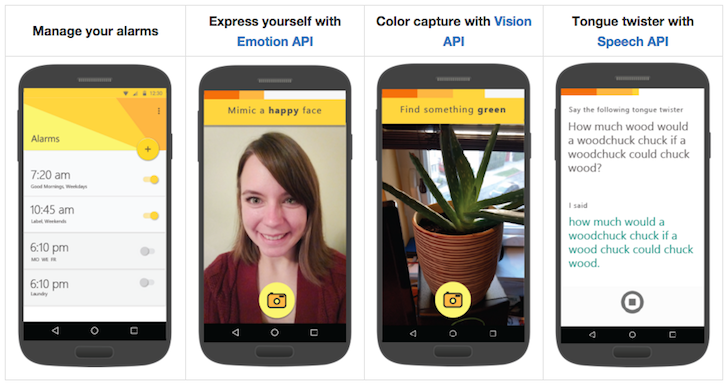
Mimicker Alarm, a Microsoft Garage Project, is a free morning alarm clock app that helps you wake up from sleep and stay up by playing a simple alarm game, called a "Mimic". To dismiss your alarm in the morning, you must mimic the action given. We might ask you to snap a selfie, speak a phrase, or even get out of bed! The Mimic games require you to be awake, alert, smart, and use your self and your surroundings, so be ready to move when your alarm fires.
Watch out – if you don’t finish the game in time, we’ll assume you’ve fallen back to sleep and your alarm will start ringing again. Once you complete the Mimic and successfully dismissed your alarm, share your personalized results with your friends to show how you woke up and beat the clock.
Features include:
* First run experience to help you learn how to use Mimicker Alarm
* Alarm customization for time, day, ringtone, snooze, and Mimic
* Choice of snooze or dismiss for each alarm
* Multiple Mimics to wake up every morning with: Match the expression, capture the color, complete the tongue twister, or shuffle between all three
* Personalized images you can share with friends after each alarm


 Search inside your keyboard!
/FEATURES
• Contacts
• Foursquare
• Giphy
• Google
• Maps
• New York Times
• Pin
• Recent
• Soundcloud
• Spotify
• Twitter
• Youtube
• Custom Slashes
…and plenty more!


 "I stare at the horizon every night before I sleep hoping to catch a glimpse of the lighthouse.The light reminds me of Grandpa and my summer visits playing on the cliffs. That warm life saving beacon not only saves ships, it keeps me safe too. Grandpa’s there just across the water watching over me.
But the lighthouse hasn't shone now for days and the fog is thick! What's happened? It's time to visit Grandpa!"
Beneath the lighthouse is a serene puzzle action game about a boy in search of his lost Grandpa. Your journey will take you through mysterious mechanical wheels that lay beneath the lighthouse!
-This game is free to play or can be unlocked to a premium experience- 


Learn Python in the most social and fun way, with SoloLearn!
Learn Python, one of today's most in-demand programming languages on-the-go, while playing, for FREE! Compete and collaborate with your fellow SoloLearners, while surfing through short lessons and fun quizzes. Practice writing Python code within the app, collect points, and show off your skills.
When you complete the course, you'll win a Certificate of Completion as a trophy!
The SoloLearn Learn Python Course covers the following topics:
• Python Basics
• Data Types
• Control Structures
• Functions and Modules
• Exceptions
• Working with Files
• Functional Programming
• Object-Oriented Programming
• Regular Expressions
• ...and even more!
So don’t wait; dive right in! Start coding with Python!


"One of the Fastest Growing Photo Apps Worldwide in 2015" -- App Annie

"Everalbum, a challenge to Google and Dropbox for storing photos online" -- WIRED

"Bringing the emotion back to photos" -- The Next Web
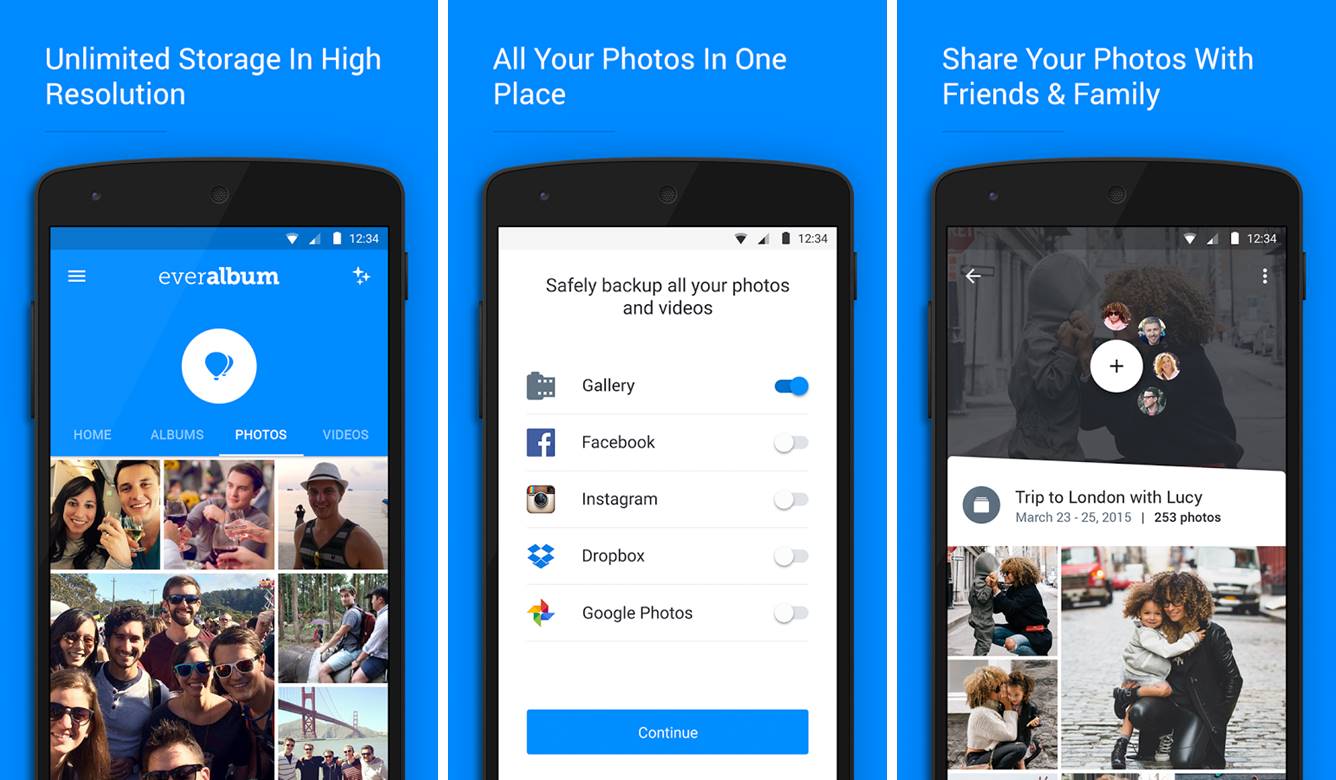
Everalbum protects your life's photos so you never have to worry about losing​ them. Across devices and photo sources, Everalbum automatically backs up your photos and videos so you can access them at any time. You can then free up space on your device by removing photos from your camera roll.
​UNLIMITED STORAGE
- Free storage for high-resolution photos from your device's camera roll
- Easily import photos from Facebook, Instagram, and Google Photos
GET YOUR SPACE BACK
- Easily free space on your device with just a few clicks
- Make room for more photos and memories
SECURE & PRIVATE BACKUP
- Your photos are always private until you decide to share
- Automatically back up photos on your ​device, as you take them
SHARE YOUR PHOTOS
- Collaborate on shared albums with your loved ones
- Share your favorite moments with friends & family
​RELIVE YOUR #THROWBACKS​
- Easily engage with your #throwbacks
- Rediscover and share cherished memories


MyShake's goal is to use the sensors in your smartphone to record earthquake shaking. By developing this capability the UC Berkeley Seismological Laboratory hopes to create a dense network that could one day provide warnings prior to shaking. The data will also be used to study earthquake processes as part of our ongoing effort to reduce the impact of future quakes.

Thanks For reading ..Please share the app you guys find interesting ....you can mention it in the comment section down below....I would love to share Your apps ... with your names .. THank You! 

Wednesday, 2 March 2016

3 best Fitness apps for Android! 2016

Hello!! ... In this post I'm going to tell you about some real cool apps which will help you during your workout and even after that also. As we see most of us wants to stay fit and fine have dream body ... and we just want to maintain ourselves .....Most of the guys wants to have Six Pack Abs.... girls want that real sexy body... so this post is all of you people!!! 


1. C25k - 5k Running Trainer -


 ★ The OFFICIAL C25K® (Couch to 5K) program ★
- Millions of success stories!
- The only 5K training app to be partners with MyFitnessPal for seamless integration.
- Featured on Glamour Magazine, Yahoo!’s Appolicious, Popsugar Fitness, Apple’s “What’s Hot”, Apple’s “New & Noteworthy”, and many more!
- Doctor recommended on healthTap.com

≈ Real-Life Inspirational Transformations ≈
- Over 100,000 Likes and 1000 Success Photos at http://facebook.com/C25Kfree
- Our community inspires one another (and inspires us!) everyday. Hear some of their amazing stories.


Lose weight with MyFitnessPal, the world’s most popular health and fitness app! With the largest food database by far (over 6,000,000 foods), our amazingly fast and easy to use calorie counter help you take those extra pounds off! And it’s FREE – no strings attached. There is no better diet app – period. 

WHAT'S NEW

It’s officially 2016 and New Year’s resolutions are in full swing. We decided that even the MyFitnessPal app could use a few healthy changes this month, so this release is full of bug fixes and performance updates. Say hello to a faster and more reliable MyFitnessPal.
We hope you enjoy and happy tracking!


Discover a new and exciting way to get motivated, lose weight, and stay in shape. Play with friends, earn rewards, defeat challenges, and track your progress on the largest fitness mobile interactive game of its kind. 


Wednesday, 24 February 2016

BEST Android Launchers march 2016!

Launchers are the way Android users customize their smartphone and tablet experience. There's superficial stuff, like changing screen transitions, icons, and fonts, but the best Android launchers out there enable users to tweak the device's behavior to suit their daily usage, so long as you're willing to put the time into defining those customization. You can make your home screens as simple or complicated as you wish, while tweaking every little detail or just taking what's given to you by default — but either way you can replace what your phone's manufacturer gives you with the install of a single app.
If you're looking for a change of pace from the out-of-box software experience on your phone, consider a new launcher. We've found the best ones available today, and listed all of the pros and cons of each.

1. ACTION LAUNCHER

Action Launcher
Action Launcher is a great option that mixes things up and changes the interface paradigm from what you'd expect in a "normal" launcher. There's no regular dock and app drawer, instead replacing it with a slide-in drawer to house your apps. You also get Shutters and Covers, which give you innovative ways to launch into folders and widgets with swipes — it's all about getting to your apps and content quicker.
The newest version, Action Launcher 3.5, takes things up to a new design that fits in with Android 5.0 Lollipop, and introduces a few new features as well. There's a free version of Action Launcher for everyone to try, with a pro upgrade costing just $4.99 — and after you figure out the time-saving features you'll want to unlock it.
It's fair to say that Action Launcher is one of our favorites as well as being one of the very best.
Download here - Action Launcher

2. GOOGLE NOW LAUNCHER


The Google Now launcher is the obvious pick for anybody looking for a pure, clean Android experience. It comes right from Google (and is pre-installed on Nexus phones), so you can shear away anything the manufacturer has loaded up in one install. Transitions are quick and clean, and there's nothing superfluous getting between you and your apps and widgets. Beyond that, the left-most home screen becomes Google Now, so you can launch into searches, view cards populated based on the time of day, your location, and general browsing habits, and execute all sorts of hands-free "OK Google" commands. The only real downside here is that you won't be able to enjoy the level of customization available on more robust launchers — you get what Google gives you here Download it here - Google Now launcher

3. NOVA LAUNCHER

Nova Launcher
Nova is a massively popular launcher that offers a whole bunch of animation options, folder views, and desktop behaviors. If you shell out $4.00 for the premium upgrade you can program gestures to perform certain actions, and fully customize unread badges including corner radius, border, background and text color. One particularly cool addition is swipe actions, which allow app icons to act as a folder with a swipe, or a standard app launch with a tap. If that's not enough, you can always explore the wide world of Nova-compatible themes in Google Play to dramatically change the look and feel of your Android device. You'll even find some Android 5.0-style options tucked away in Nova.
Nova is a highly functional launcher that can be as subtle or as loud as you like, making it completely unique if you spend the time.

4. APEX LAUNCHER

Apex Launcher
Apex offers a similar range of functions as Nova. You can tweak the icon tray size and scrolling, change animations, adjust home screen behaviors, and customize gesture commands for various pinches, taps, and swipes. A plug-in allows notification data to be fed to Apex from a variety of apps, and out to any Android Wear devices, too, so long as you're willing to upgrade to the pro version for $4.49. There are a wide range third party themes available in the Google Play Store which let you change the overall look of your Android experience, but as a functional core, Apex does extremely well.
Android power users will have a field day with the Apex launcher
PLEASE comment down below ..What are your favorite launchers ... AND PLEASE SUBSCRIBE GUYS 

Tuesday, 23 February 2016

Manage your Smartphone from desktop

No matter how advanced your smartphone is, multi-tasking on it is a living nightmare. We are limited by the small screen on a smartphone or tablet and its insistence on allowing us to use only a single app at any viewing.
It is probably easier to manage a ton of media, such as our photos, videos and music on the desktop. This is where tools like what you see in this post comes to play.

Apart from being able to transfer large files from mobile to desktop, it also allows us to better manage the files and materials in our mobile. A few of these apps even gives us access to the phone’s camera, or to take mobile screenshots from the desktop.
Most importantly, we can do all this without being limited by the different desktop OS. Let’s check out the tools you can use to manage your Android from your desktop.

1. Airmore

Airmore is an app that allows you to stream videos, photos and your music collection on your smartphone. Photos are organized by day or month to make it easy to download or delete. With Airmore, you can also manage contacts, send multiple messages at once to your contacts or even make a call (note that you cannot end the call directly from your desktop).

How to Use

  1. Install the app for Android or iOS. Open the app.
  2. Open Airmore Web on your PC browser, and scan the QR code displayed. Click "Accept" on your mobile.
  3. Alternatively, connection can be made via IP or code or mobile hotspot connection as well.
With Airmore, you can connect your Android to Mac, or iOS to PC as well. For troubleshooting help, check out their help page. Airmore lets you manage all files both on phone memory and SD card, and of course, transfering files between phone and PC is easy.

2. Connect Me

ConnectMe allows you to stream any video or any other media saved on your phone. You can even link to the phone camera and watch the feed from the desktop. On top of that, you can send SMS and making phone calls with ease without touch your phone. It will even notify you when someone calls you or sends you a message.

How to Use

  1. Install the app and open it.
  2. Using your home WiFi, visit the web address shown on the app or login toweb.gomo.com on your PC’s browser. Click ‘OK’ on your phone to connect.
  3. Alternatively, you can connect your PC to your phone’s WiFi with a name generated by the app. Open the URL shown on your phone with your PC browser.
connect me
Connect Me works with Windows, Mac, Linux, Chrome OS and even Smart TVs. The app also lets you send ringtones, clipboard data, APK files or push URLs to your phone. With root access, you can even take screenshots of your phone.

3. Airdroid

Airdroid is one of the most popularly known Mobile to PC apps out there and it comes with a plethora of features. These features include being able to show notification from incoming calls or messages, as well as app notifications from messaging apps like Whatsapp. Getting an Airdroid account allows you to find your phone.

How to Use

  1. Install Airdroid, and open the app.
  2. Open Airdroid Web and scan the QR code to connect.
  3. Alternatively, you can download the desktop app for Windows or Mac OS X. Starting the app on the desktop will launch the app on your mobile.
airdroid
Apart from that Airdroid also works well when transferring files between phone and PC, and also lets the desktop link to the phone’s camera. A cool feature it has is AirMirror, which allows you to run your Android app right from your PC with the same interface on your smartphone (but this requires root acess on your Android).

4. Web PC Suite

Web PC Suite enables you to see and stream your photos, music, videos, documents, APK, and other kind of files from your Android to PC, via WiFi or personal hotspot. The interface functions via drag-and-drop.

How to Use

  1. Download the app and open it.
  2. Go to the website and scan the QR code there. Alternatively, you can login via your account as well.
web pc suite
Web PC Suite works across a wide range of desktop, mobile and tablet platforms bridging transfers between Android, iOS, Symbian, Windows Phone and Blackberry with PC, OS X and Linux.

5. Mighty Text

Mighty Text is created for those who still text via SMS for reasons we will not explore here. But basically, with Mighty Text, you can send or receive SMS or MMS on your PC using your current phone number, or send an SMS from your Gmail account. The app comes with a PowerView which lets you carry multiple conservations in one go.

How to Use

  1. On the installation page, insert your Android phone number to get the app sent to your phone.
  2. Install the plugin or extension for your favorite browser. To send text from Gmail, get the required extension on the same page.
  3. Launch the Web App to start using.
mighty text
The app also notifies users of incoming app notification to their phone, and allow these notifications to be dismissed on the PC. The app also has syncing abilities for photos and videos, and you can add filters to your photos right on the PC.
There is a Pro version of this app gives you extra features such as to send and reply to text messages via email, changing the themes, block numbers, create templates and signatures as well as schedulling messages.

6. Xender

Xender is great app to transfer everything from files, photos, music, videos to apps between two Android phones or from Android to a PC, Mac or iOS devices. The Connect PC mode allows users to see the all the files found in their phone, from apps, photos, videos, music and even files from your phone storage.

How to Use

  1. On your PC browser, open web.xender.com.
  2. Download and open the app on your mobile.
  3. Tap on the Transfer button and choose which device to transfer to.
  4. If you choose Mac or PC, you will need to choose to scan QR code on your mobile. Scan the code to connect.
xender
Xender’s phone to phone transfers incur no data usage, and supports file transfers between iOS and Android devices seamlessly. Two cool features Xender has is that you can create a group of up to 4 devices, and regularly share your files to the same group, and it is a great app to replicate your phone: you can transfer everything you need from your old phone to your new phone seamlessly.

7. Mobizen

Mobizen lets you access and transfer files between your Android and your computer, and lets you access all multimedia files on your phone, including contacts and calls. Mobizen also allows you to share music to your speakers and photos and videos to your larger desktop screen, record your Android screen (minus the rooting), and use your Android from your computer screen.

How to Use

  1. Install the application on your Android. There are two options: one forSamsung devices and the other is for non-Samsung devices.
  2. Get the browser plug-in.
  3. Log in both the Android app and the web app.
  4. You will receive a 6 digit pin that you need to input in the Android app to connect.
mobizen
You can be connected in several ways: WIFI, USB or even 3G / LTE connection. For the fastest connection, USB connection is the best. The app runs very slowly when I connect via WiFi. Mobizen also comes with a "Find my Device" feature to help you locate your phone, which would be helpful if their over the air connection is better.

8. WiFi File Transfer

WiFi File Transfer does what the rest of the apps in this list do, but in a relatively traditional way. With this small app you can browse all of the files and folders on your Android via WiFi by FTP (File Transfer Protocol).

How to Use

  1. Download the app.
  2. Ensure your Android and PC are on the same WiFi network.
  3. Open the application and click "Start Service".
  4. Copy and paste the URL address displayed in the app, into your FTP client application, or Windows Explorer (if you are using windows) or simply open the URL in the browser. You will find all the files on your Android.
wifi file transfer
If you use an FTP client, commands such as copy, delete or download files exist on the default FTP client application. You won’t find these commands on the browser however. Basically, this app can do fast, secure and efficient transfers but you will have to do it without a user interface.
YOU CAN READ THE ORIGINAL POST HERE - http://www.hongkiat.com/blog/manage-android-via-browser/