Showing posts with label latest tech news. Show all posts

Sunday, 13 March 2016

Android N Features! CONFIRMED !


The first Android N developer preview is now out and it gives us a sneak peek into what Android 7.0 will eventually look like when it arrives officially later this year. Of course, developer previews quite often contain features that won’t make it to the final release, but there’s still plenty to get excited about, so let’s dive right in. Here are all the confirmed, rumored and expected Android N features, with a particular focus on what currently exists in the first Android N preview update. Please note that some features have been officially confirmed by Google, while others, “confirmed” by the developer preview, could still disappear before Android 7.0.

Confirmed Android N features

Android N release date: now! 


Rather than wait until Google I/O 2016 – Google’s annual developer conference, which begins on May 18 – Google decided to surprise us all by releasing the first Android N developer preview on March 9, two full months earlier than expected. The Android N preview went live for the Nexus 6P, Nexus 5X, Nexus 6, Nexus 9 (Wi-Fi and LTE), Nexus Player and Pixel C on theAndroid Developers site. A more polished version of the Android N developer preview will still be shown off during Sundar Pichai’s keynote lecture on day one of the conference but developers and enthusiasts will have a couple months’ head start on getting to know N.

Google surprised us by releasing N developer preview earlier than expected ! 

The final Android 7.0 release date has been confirmed for Q3, 2016, giving Google until September 30 to make good on its timeline. This means that the Nexus 6P (2016) and Nexus 5X (2016) – or whatever they will be called this year – will be coming a little earlier than expected too, as the new version of Android is always presented alongside new Nexus devices.
The Nexus 4 was announced on October 29, the Nexus 5 on October 31, the Nexus 6 on October 15, the Nexus 5X and 6P on September 29. So we might even see this year’s Nexuses earlier in September rather than the end of the month if the progressively earlier announcement dates are anything to go by.
The final Android 7 release will be limited to Nexus devices at first and make its way to other manufacturer devices and carrier networks over the following six months or so. You can download the Android N preview below and flash it on a compatible device right now but be sure to consult the list of known issues first.

1 - Multi-window mode

The first official Android N feature to be confirmed was multi-window mode, with the confirmation coming, obscurely enough, via a Reddit AMA with the Pixel C team a few months back. During the discussion, Andrew Bowers confirmed that “split screen is in the works” and with the release of Android N developer preview 1, we can now see exactly how Android 7.0 split screen mode will look.
Compatible apps (developers will need to add support for split screen mode individually) can be opened up side-by-side in Android N and resized. Developers will be able to set a minimum size for their app windows, but you’ll have a very similar multitasking experience to what you already find on many OEM devices. There’s also a new picture-in-picture mode that works just like minimized video in YouTube.

2 - New Android N settings menu

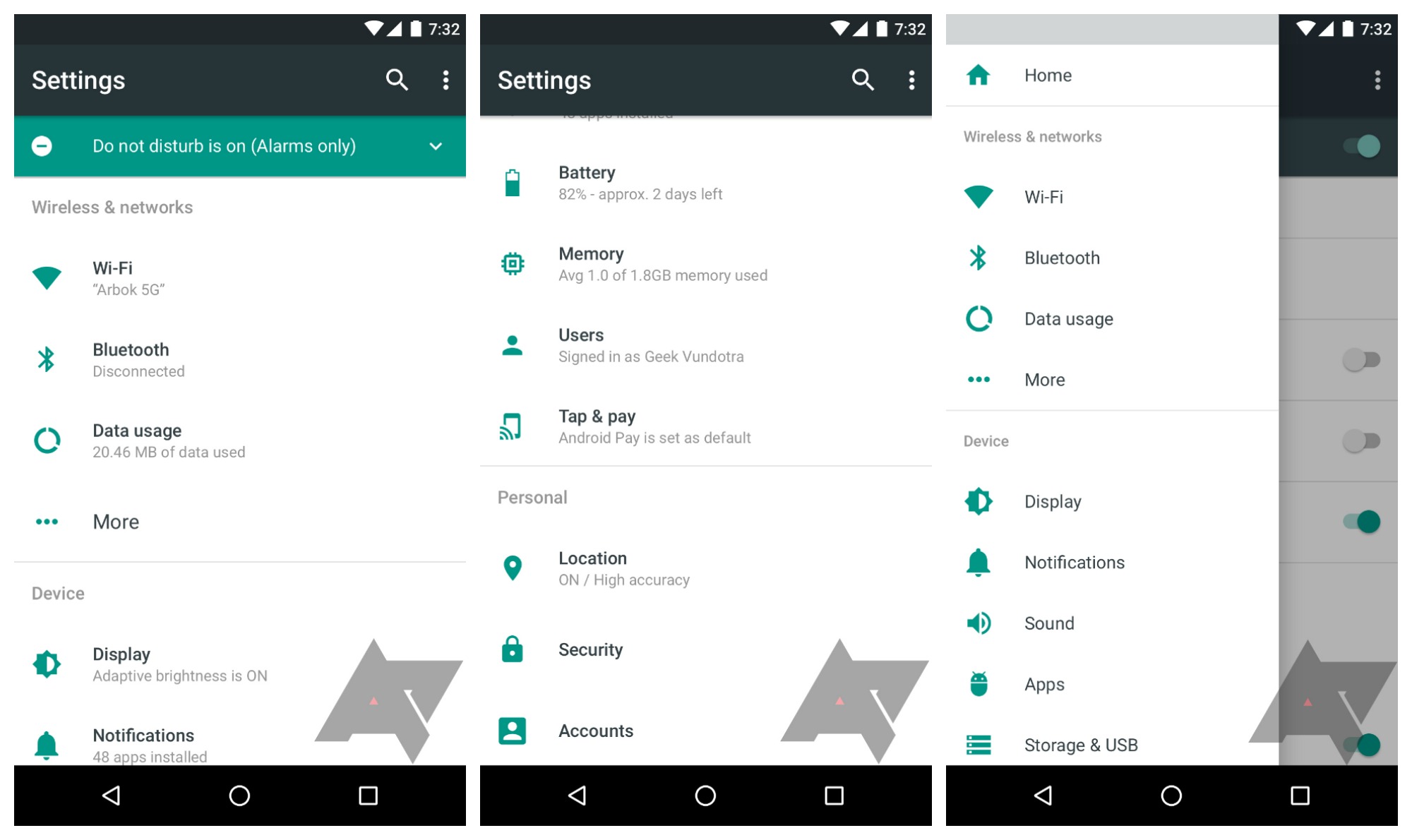
Android N delivers a revamped settings menu too. The changes include the addition of a Suggestions drop-down section at the top and removal of the individual section dividers. One of the best changes though is that you can now see basic details of each section in the main Settings menu. So, for example, rather than have to enter the Wi-Fi menu to see which network you’re connected to, Android N displays that information in the top-level settings menu. It’s an obvious time-saving idea and is kind of surprising it has taken this long to appear. Sound and Notifications have now been given their own dedicated sections too, rather than being grouped together like in Marshmallow.
The hamburger menu returns and has now been explained, providing a swipe-out nav drawer that simply reproduces the top-level settings menu sections. While it’s debatable if it is any better than just tapping the back arrow when you’re one level into a menu, it will provide a quick escape route to the main settings when you’re several levels down in sub-menus. Of course, the presence of the hamburger menu in Android N also does away with the duplicated actions of the back arrow in the settings and the back arrow in the nav bar.
3 - Enhanced Doze Mode - Read here for in-depth review

4 - Revamped notification shade/quick settings panel  - Read here in detail

5 - Change display size in Android N - Read here in detail


Subscribe to my blog... for more info which is yet to come. I will keep on updating this post so stay tuned! 


Friday, 26 February 2016

LIVE BROADCAST to Android coming next week!!

Facebook_live_broadcast_video_demo_022616

Beginning next week, Facebook users on Android will be able to live broadcast video. The update will roll out in the United States first, with plenty more regions getting it soon after.
Facebook is adding a big feature soon that’s going to allow users to broadcast live video to friends and family for free. Facebook’s goal is to make the addition available on Android in thirty different countries to match that of iOS.
Streaming live video on Facebook is real easy to do. Just click the space that reads ‘what’s on your mind’ that you would normally click to start a post. An option will come up that allows you to share live video. Users will be able to invite whomever they want to watch, which is not limited to any number. You’ll also be able to add a brief description of what your video is about and even comment during the stream with whoever else is watching. Once the broadcast it over, you’ll be able to post the video on your timeline for everyone to see.  You can check this video for an Idea!! 
Live broadcasting will be a great addition to the Android-version of the Facebook application. We can’t wait to try it out!
SOURCE - FACEBOOK  

Tuesday, 23 February 2016

Manage your Smartphone from desktop

No matter how advanced your smartphone is, multi-tasking on it is a living nightmare. We are limited by the small screen on a smartphone or tablet and its insistence on allowing us to use only a single app at any viewing.
It is probably easier to manage a ton of media, such as our photos, videos and music on the desktop. This is where tools like what you see in this post comes to play.

Apart from being able to transfer large files from mobile to desktop, it also allows us to better manage the files and materials in our mobile. A few of these apps even gives us access to the phone’s camera, or to take mobile screenshots from the desktop.
Most importantly, we can do all this without being limited by the different desktop OS. Let’s check out the tools you can use to manage your Android from your desktop.

1. Airmore

Airmore is an app that allows you to stream videos, photos and your music collection on your smartphone. Photos are organized by day or month to make it easy to download or delete. With Airmore, you can also manage contacts, send multiple messages at once to your contacts or even make a call (note that you cannot end the call directly from your desktop).

How to Use

  1. Install the app for Android or iOS. Open the app.
  2. Open Airmore Web on your PC browser, and scan the QR code displayed. Click "Accept" on your mobile.
  3. Alternatively, connection can be made via IP or code or mobile hotspot connection as well.
With Airmore, you can connect your Android to Mac, or iOS to PC as well. For troubleshooting help, check out their help page. Airmore lets you manage all files both on phone memory and SD card, and of course, transfering files between phone and PC is easy.

2. Connect Me

ConnectMe allows you to stream any video or any other media saved on your phone. You can even link to the phone camera and watch the feed from the desktop. On top of that, you can send SMS and making phone calls with ease without touch your phone. It will even notify you when someone calls you or sends you a message.

How to Use

  1. Install the app and open it.
  2. Using your home WiFi, visit the web address shown on the app or login toweb.gomo.com on your PC’s browser. Click ‘OK’ on your phone to connect.
  3. Alternatively, you can connect your PC to your phone’s WiFi with a name generated by the app. Open the URL shown on your phone with your PC browser.
connect me
Connect Me works with Windows, Mac, Linux, Chrome OS and even Smart TVs. The app also lets you send ringtones, clipboard data, APK files or push URLs to your phone. With root access, you can even take screenshots of your phone.

3. Airdroid

Airdroid is one of the most popularly known Mobile to PC apps out there and it comes with a plethora of features. These features include being able to show notification from incoming calls or messages, as well as app notifications from messaging apps like Whatsapp. Getting an Airdroid account allows you to find your phone.

How to Use

  1. Install Airdroid, and open the app.
  2. Open Airdroid Web and scan the QR code to connect.
  3. Alternatively, you can download the desktop app for Windows or Mac OS X. Starting the app on the desktop will launch the app on your mobile.
airdroid
Apart from that Airdroid also works well when transferring files between phone and PC, and also lets the desktop link to the phone’s camera. A cool feature it has is AirMirror, which allows you to run your Android app right from your PC with the same interface on your smartphone (but this requires root acess on your Android).

4. Web PC Suite

Web PC Suite enables you to see and stream your photos, music, videos, documents, APK, and other kind of files from your Android to PC, via WiFi or personal hotspot. The interface functions via drag-and-drop.

How to Use

  1. Download the app and open it.
  2. Go to the website and scan the QR code there. Alternatively, you can login via your account as well.
web pc suite
Web PC Suite works across a wide range of desktop, mobile and tablet platforms bridging transfers between Android, iOS, Symbian, Windows Phone and Blackberry with PC, OS X and Linux.

5. Mighty Text

Mighty Text is created for those who still text via SMS for reasons we will not explore here. But basically, with Mighty Text, you can send or receive SMS or MMS on your PC using your current phone number, or send an SMS from your Gmail account. The app comes with a PowerView which lets you carry multiple conservations in one go.

How to Use

  1. On the installation page, insert your Android phone number to get the app sent to your phone.
  2. Install the plugin or extension for your favorite browser. To send text from Gmail, get the required extension on the same page.
  3. Launch the Web App to start using.
mighty text
The app also notifies users of incoming app notification to their phone, and allow these notifications to be dismissed on the PC. The app also has syncing abilities for photos and videos, and you can add filters to your photos right on the PC.
There is a Pro version of this app gives you extra features such as to send and reply to text messages via email, changing the themes, block numbers, create templates and signatures as well as schedulling messages.

6. Xender

Xender is great app to transfer everything from files, photos, music, videos to apps between two Android phones or from Android to a PC, Mac or iOS devices. The Connect PC mode allows users to see the all the files found in their phone, from apps, photos, videos, music and even files from your phone storage.

How to Use

  1. On your PC browser, open web.xender.com.
  2. Download and open the app on your mobile.
  3. Tap on the Transfer button and choose which device to transfer to.
  4. If you choose Mac or PC, you will need to choose to scan QR code on your mobile. Scan the code to connect.
xender
Xender’s phone to phone transfers incur no data usage, and supports file transfers between iOS and Android devices seamlessly. Two cool features Xender has is that you can create a group of up to 4 devices, and regularly share your files to the same group, and it is a great app to replicate your phone: you can transfer everything you need from your old phone to your new phone seamlessly.

7. Mobizen

Mobizen lets you access and transfer files between your Android and your computer, and lets you access all multimedia files on your phone, including contacts and calls. Mobizen also allows you to share music to your speakers and photos and videos to your larger desktop screen, record your Android screen (minus the rooting), and use your Android from your computer screen.

How to Use

  1. Install the application on your Android. There are two options: one forSamsung devices and the other is for non-Samsung devices.
  2. Get the browser plug-in.
  3. Log in both the Android app and the web app.
  4. You will receive a 6 digit pin that you need to input in the Android app to connect.
mobizen
You can be connected in several ways: WIFI, USB or even 3G / LTE connection. For the fastest connection, USB connection is the best. The app runs very slowly when I connect via WiFi. Mobizen also comes with a "Find my Device" feature to help you locate your phone, which would be helpful if their over the air connection is better.

8. WiFi File Transfer

WiFi File Transfer does what the rest of the apps in this list do, but in a relatively traditional way. With this small app you can browse all of the files and folders on your Android via WiFi by FTP (File Transfer Protocol).

How to Use

  1. Download the app.
  2. Ensure your Android and PC are on the same WiFi network.
  3. Open the application and click "Start Service".
  4. Copy and paste the URL address displayed in the app, into your FTP client application, or Windows Explorer (if you are using windows) or simply open the URL in the browser. You will find all the files on your Android.
wifi file transfer
If you use an FTP client, commands such as copy, delete or download files exist on the default FTP client application. You won’t find these commands on the browser however. Basically, this app can do fast, secure and efficient transfers but you will have to do it without a user interface.
YOU CAN READ THE ORIGINAL POST HERE - http://www.hongkiat.com/blog/manage-android-via-browser/